device-docs
Settings and Calibration
This page covers the Settings menu and how to calibrate a source.
The Settings Menu
To open Settings:
- Tap the menu icon (three lines) in the top-left corner.
- Tap Settings.
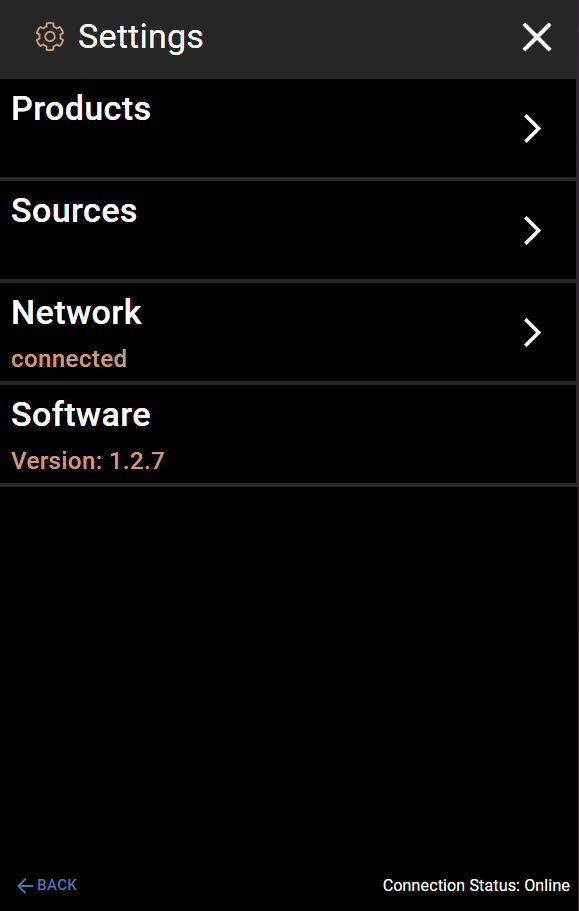
The Settings screen has four sections:
| Section | What It Does |
|---|---|
| Products | View and edit all drink recipes |
| Sources | View and edit all ingredient sources |
| Network | Shows if the machine is connected to the internet |
| Software | Shows the current software version |
Products
Tap Products to see all the drink recipes on the machine.
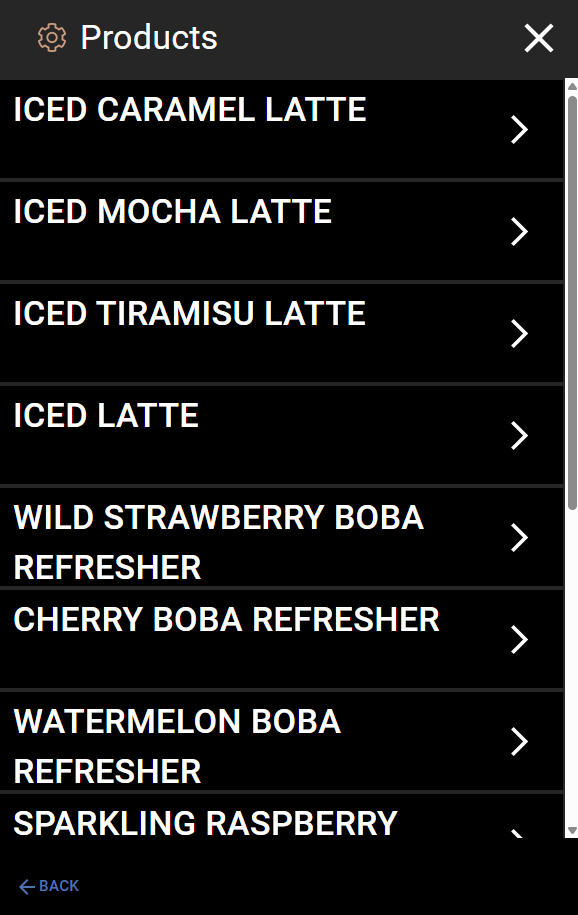
Tap any recipe to open it and change its ingredients. See Change Ingredient Amounts for details.
Sources
Tap Sources to see all the ingredient sources on the machine.
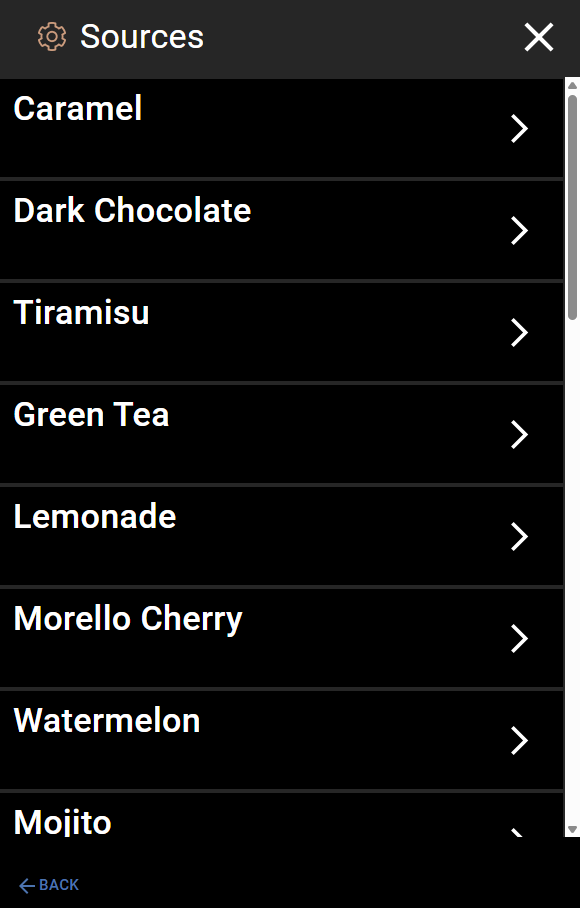
Tap any source to see its details.
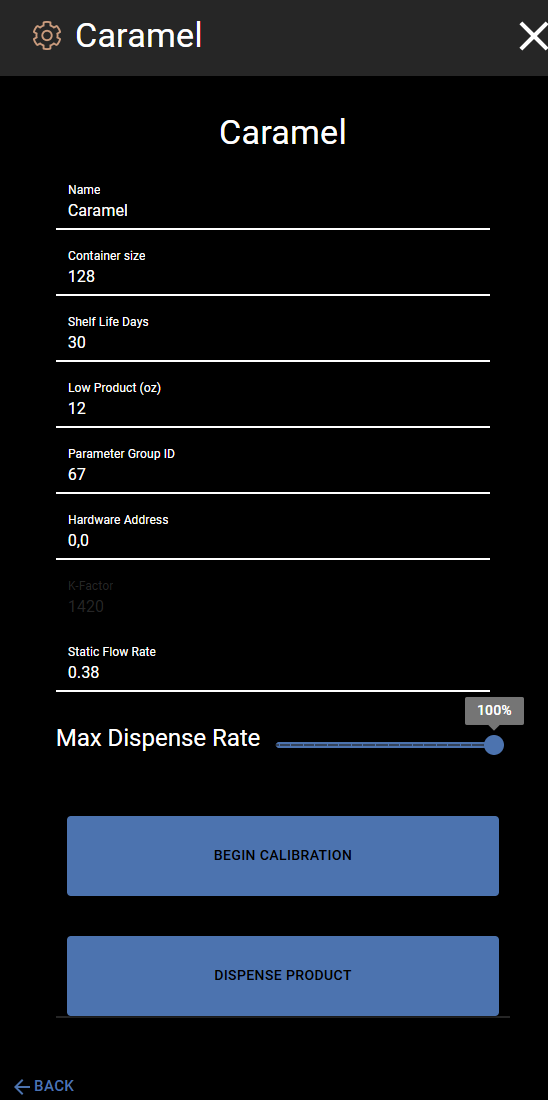
Each source shows:
| Field | What It Means |
|---|---|
| Name | The name of the ingredient |
| Container Size | How many ounces are in a full container |
| Shelf Life Days | How many days the product stays fresh |
| Low Product (oz) | The machine warns you when this much product is left |
| Max Dispense Rate | How fast the ingredient pours (slider, 0-100%) |
There are also two buttons at the bottom:
- BEGIN CALIBRATION - Starts the calibration process (see below)
- DISPENSE PRODUCT - Pours this ingredient from the tap (used for cleaning and testing)
Calibration
Warning: Calibration is an advanced feature. It is not part of regular day-to-day use. Only use calibration if a drink is pouring the wrong amount, or if you have been told to calibrate by your support team.
Calibration helps the machine measure how fast an ingredient flows. This makes sure the right amount comes out when you pour a drink.
What You Will Need
- A container with an 8 oz marking on it
- The container must be safe for the product being dispensed
How to Calibrate
-
Open Settings > Sources and tap the source you want to calibrate.
-
Tap the BEGIN CALIBRATION button at the bottom of the screen.
-
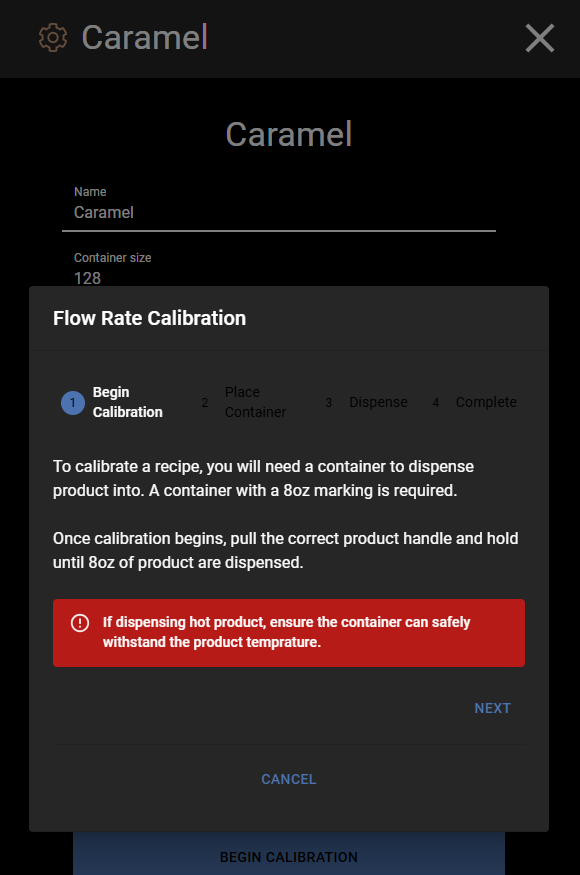
Step 1 - Begin Calibration: Read the instructions on screen. You will need a container with an 8 oz mark. Tap NEXT when ready.
-
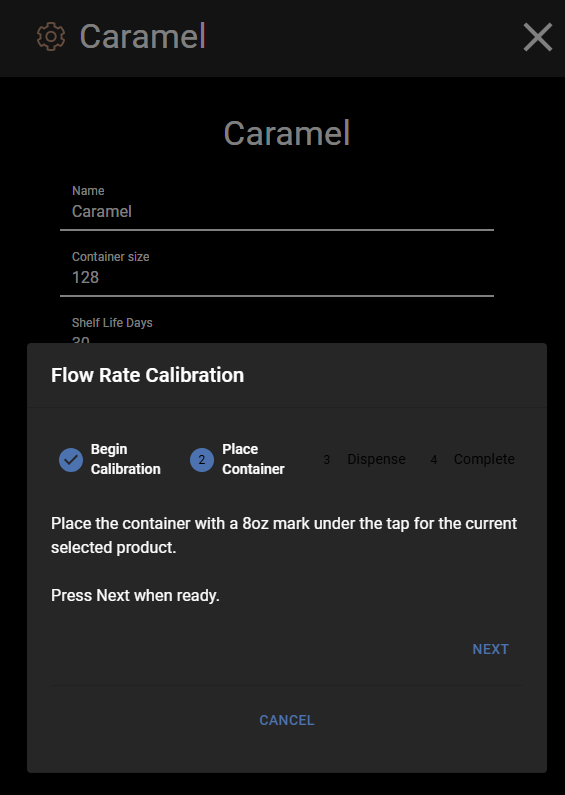
Step 2 - Place Container: Put the container with the 8 oz mark under the tap for this ingredient. Tap NEXT when the container is in place.
-
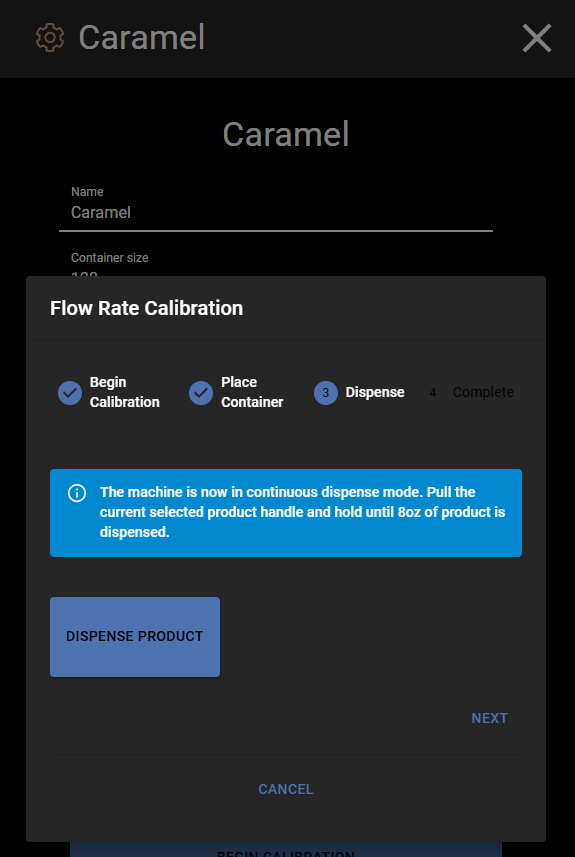
Step 3 - Dispense: Tap DISPENSE PRODUCT. Pull the product handle and hold it until 8 oz of product has been dispensed into the container. Tap NEXT when done.
-
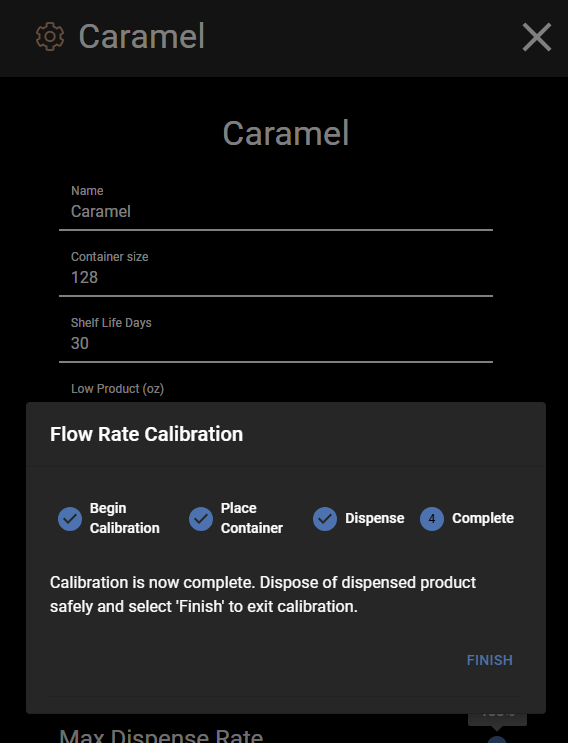
Step 4 - Complete: Calibration is done. Throw away the dispensed product safely. Tap FINISH to close.
Canceling Calibration
You can tap CANCEL at any step to stop calibration and go back to the Source Editor.