device-docs
How to Pour a Drink
This page shows you how to select a drink, pick a size, and pour it.
Step 1: Pick a Drink
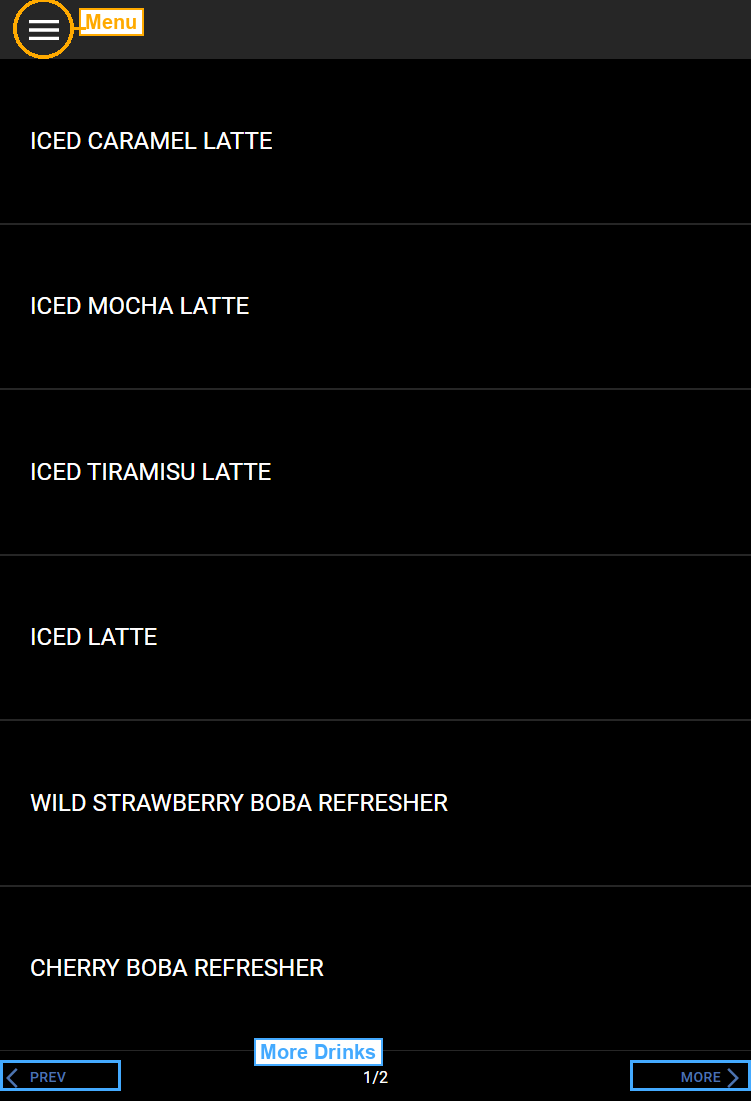
The home screen shows a list of drinks. Tap the drink you want to pour.
If you do not see the drink you want, tap MORE at the bottom-right to see more drinks (marked in blue). Tap PREV to go back.
Step 2: Choose Your Size and Room
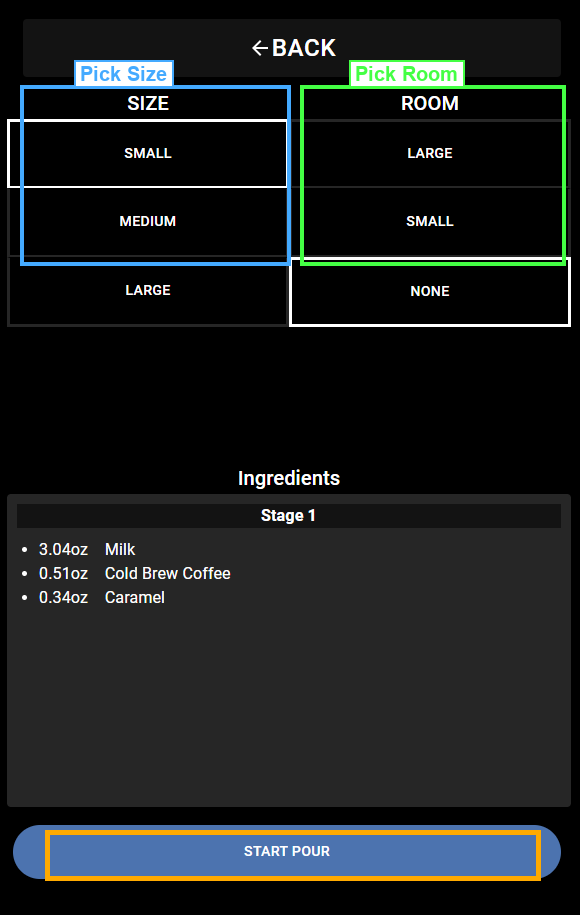
After you tap a drink, the Drink Build screen opens. You will see two columns: SIZE (marked in blue) and ROOM (marked in green).
Size
Pick how much drink to pour:
- Small - smallest cup
- Medium - medium cup
- Large - largest cup
Tap the size you want. A white border shows which size is selected.
Room
Room means how much space to leave in the cup. This is useful when you want to add something else later, like cream.
- Large - leaves a lot of space in the cup
- Small - leaves a little space in the cup
- None - fills the cup all the way
Ingredients
Below the size and room options, you will see a list of Ingredients. This shows what is in the drink and how much of each ingredient (in ounces). The amounts change based on the size you pick.
Step 3: Start the Pour
When you are ready, tap the START POUR button at the bottom of the screen.
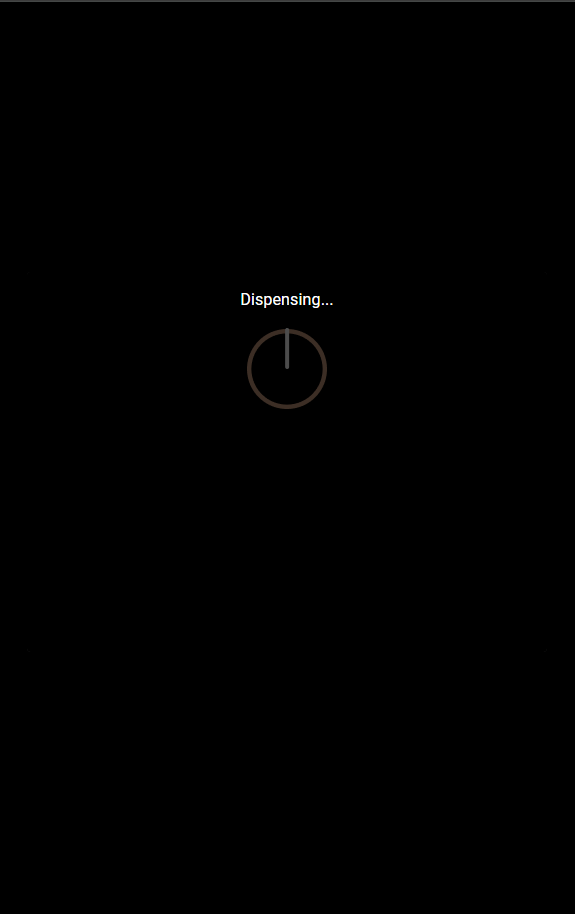
The screen will show “Dispensing…” with a spinning icon while the drink is being poured. Wait for it to finish.
Step 4: Remove Your Drink
When the screen goes back to the Drink Build screen, your drink is done. Remove the cup from under the tap.
Going Back
To go back to the drink list at any time, tap the BACK button at the top of the Drink Build screen.