device-docs
Add an Ingredient to a Recipe
This page shows you how to add a new ingredient to an existing recipe.
Step 1: Open the Recipe
- Tap the menu icon (three lines) in the top-left corner.
- Tap Settings.
- Tap Products.
- Tap the recipe you want to change.
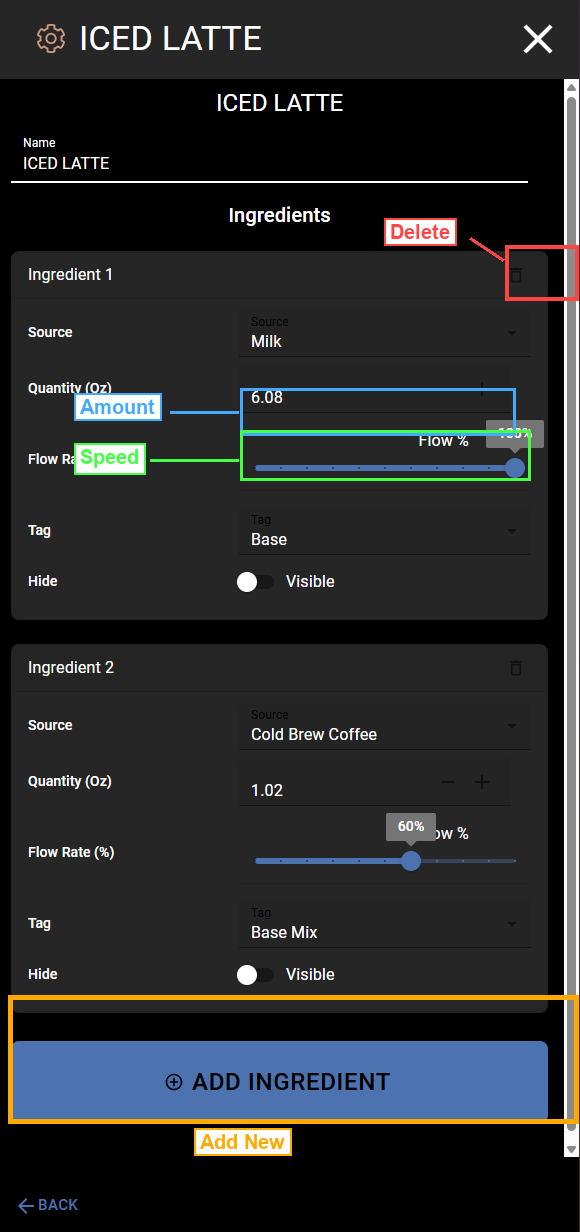
The Recipe Editor will open and show the current ingredients.
Step 2: Scroll Down
You may need to scroll down to see the ADD INGREDIENT button (marked in orange at the bottom of the screenshot above). Swipe up on the screen until you see it.
Step 3: Tap Add Ingredient
Tap the blue ADD INGREDIENT button. A new ingredient card will appear in the list.
Step 4: Set Up the New Ingredient
Fill in the details for the new ingredient:
-
Source - Tap the Source dropdown and pick which ingredient to add (for example, “Caramel” or “Milk”). This list shows all the sources that are set up on the machine.
-
Quantity (Oz) - Use the + and - buttons to set how much of this ingredient to use (in ounces).
-
Flow Rate (%) - Drag the slider to set how fast this ingredient pours. If you are not sure, start at 100%.
-
Tag - Pick when this ingredient should pour. See the tag guide below.
-
Hide - Choose whether the customer sees this ingredient on the pour screen. Set to Visible to show it, or Hidden to keep it out of the customer’s ingredient list. The ingredient still pours either way.
Step 5: Pick the Right Tag
The Tag controls when the ingredient pours during the drink. The machine pours a drink in stages, with a brief pause between each stage.
| Tag | When It Pours | Use It For |
|---|---|---|
| Base | Stage 1 (first) | The main liquid in the drink (milk, water, soda water) |
| Base Mix | Stage 1 (first) | What mixes with the base to make the drink (coffee, soda syrup) |
| None | Stage 1 (first) | Extra flavors that go in during the first pour (vanilla, caramel) |
| Stage 2 | Stage 2 (after a pause) | Toppings or layers added after the main drink (cream topper) |
| Stage 3 | Stage 3 (last) | Anything added at the very end |
Examples
Iced Latte:
- Milk = Base (the main liquid)
- Cold Brew Coffee = Base Mix (mixes with milk to make the latte)
Vanilla Coke with Cream:
- Soda Water = Base (the main liquid)
- Cola Syrup = Base Mix (mixes with soda water to make the coke)
- Vanilla = None (extra flavor, pours with the first stage)
- Cream = Stage 2 (pours after a pause to create a cream topper)
Tip: If you are adding a simple flavor to a drink (like vanilla or caramel), set the Tag to None. If you are adding a topper or layer that should go on after the main drink, use Stage 2.
Step 6: Check the Other Ingredients
After you add a new ingredient, you may want to lower the amounts of the other ingredients. This keeps the total drink size about the same.
Example: If you add 0.5 oz of a new flavor to a recipe, you might want to reduce another ingredient by 0.5 oz so the cup does not overflow.
When You Are Done
Tap the X in the top-right corner to close the recipe editor. Your changes are saved.